顯示具有 3C Tips 標籤的文章。 顯示所有文章

2022/02/26

Android 上如何將系統語言設定為語言選單不提供的語言?
(How to set android device's system language to one that is not available on the language list?)


我在去年底從淘寶買一台中國文石boox 的 note 5+ 電子書,後來我才知道 note 5+ 是屬於中國專屬版本,一般國際版是 note 5,這個差別就是 note 5+在某次韌體更新後,系統語言只剩下中文繁簡體與英文,國際版語系應該不會被閹割。

那我想要像手機一樣要跑兩個 kindle app 其中一個登入日本網站就無法了,因為 kindle app 是依據系統語系決定登入的 amazon 網站,沒有日本語系,我kindle app 就無法登入 Amazon.co.jp,所以最重要的是把被砍掉的日文語系弄回來。
Android 系統要改語系可以透過 debug adb 方式下指令,也有 app 可以改,但是都要先開啟 note 5+上的 debug 模式,然後連上電腦 用 adb 授權 app 修改系統設定的權限。
一開始直接下指令失敗,後來又找 ADB Change Language 這個app,還是變更失敗。
於是再找另一個 app "MoreLocale2",就試成功了。
先在 adb 下指令授權
adb shell pm grant jp.co.c_lis.ccl.morelocale android.permission.CHANGE_CONFIGURATION
然後在 app 上選擇 ja 就成功了。
日文語系回來了。
再來就按照前一篇那個方式安裝兩個 kindle 就好了。
買中國貨還是要小心它們國內版跟國際版會有差異。


I purchased a Boox Note 5+ from China's Taobao last November, and it appears that Boox Note 5+ is a China domestic version and the international version is called "Boox Note 5".

The difference I noticed is that Note 5+ is with more robust hardware, other than that, I thought I should be able to use the reader happily ever after.

However, I was wrong. Recently, when I was trying to change the device's language to Japanese, I found that there were only 3 languages available on the selection menu, Traditional Chinese, Simplified Chinese and English. No where could I find Japanese! I even reset the device to see if it could come back and there was no luck.

As my brother also got his Note 5+ at the same time as we bought in the same package, I asked him whether his Note 5+ supports Japanese after I found mine problematic, he said yes. That surprised me and after comparison we concluded that sometime last year after a firmware update, Boox just eliminated other languages in Boox Note 5+. As my brother never updated firmware and there was a full list of various languages in his device's language setting. And mine with latest firmware only with 3 languages left.

I asked China's Boox customer service and the reply was just that it is as it is and they have no plan to bring other languages back to Note 5+.

Okay, now I'm on my own.

After some google search, I found that with android device we could use adb command to set the device language and there are also some apps that could help.

I failed with direct adb language setting command, then I tried with apps, I have tried "ADB Change Language" and "MoreLocale2", and "MoreLocale2" worked for me.

1. Set the device into debug mode. (Application->Right corner menu-> USB Debug Mode).

2. Install adb environment on computer and connect Note5+ with USB and hit the confirmation box on Note5+.

3. Type command "adb devices" to check if the device is connected.

4. Install "MoreLocale2", and run it.

5. Grant permission to "MoreLocale2" with adb command

adb shell pm grant jp.co.c_lis.ccl.morelocale android.permission.CHANGE_CONFIGURATION

6. Select "Ja" from MoreLocale2's language list and set it.

Now the system is in Japanese. :)

I turn off firmwas auto update function and I'll never update my Boox Note 5+ firmware again.




如何在android上執行兩個 kindle app
(How to run 2 kindle apps on the same android device?)


Amazon 買電子書很方便,而且這一兩年美國 Amazon 也開始賣繁中的書,還常常賣的比國內便宜,kindle 電子紙也很好用,所以我常在上面消費,手機上也有安裝 Kindle app 看電子書。

但是,最近,我也開始在日本 Amazon 買電子書,兩邊的帳號是不相通的,而且手機上只能裝一個 Kindle app 只能選日本或美國登入,可是我也想在手機上看日本 Amazon 買的書呀!

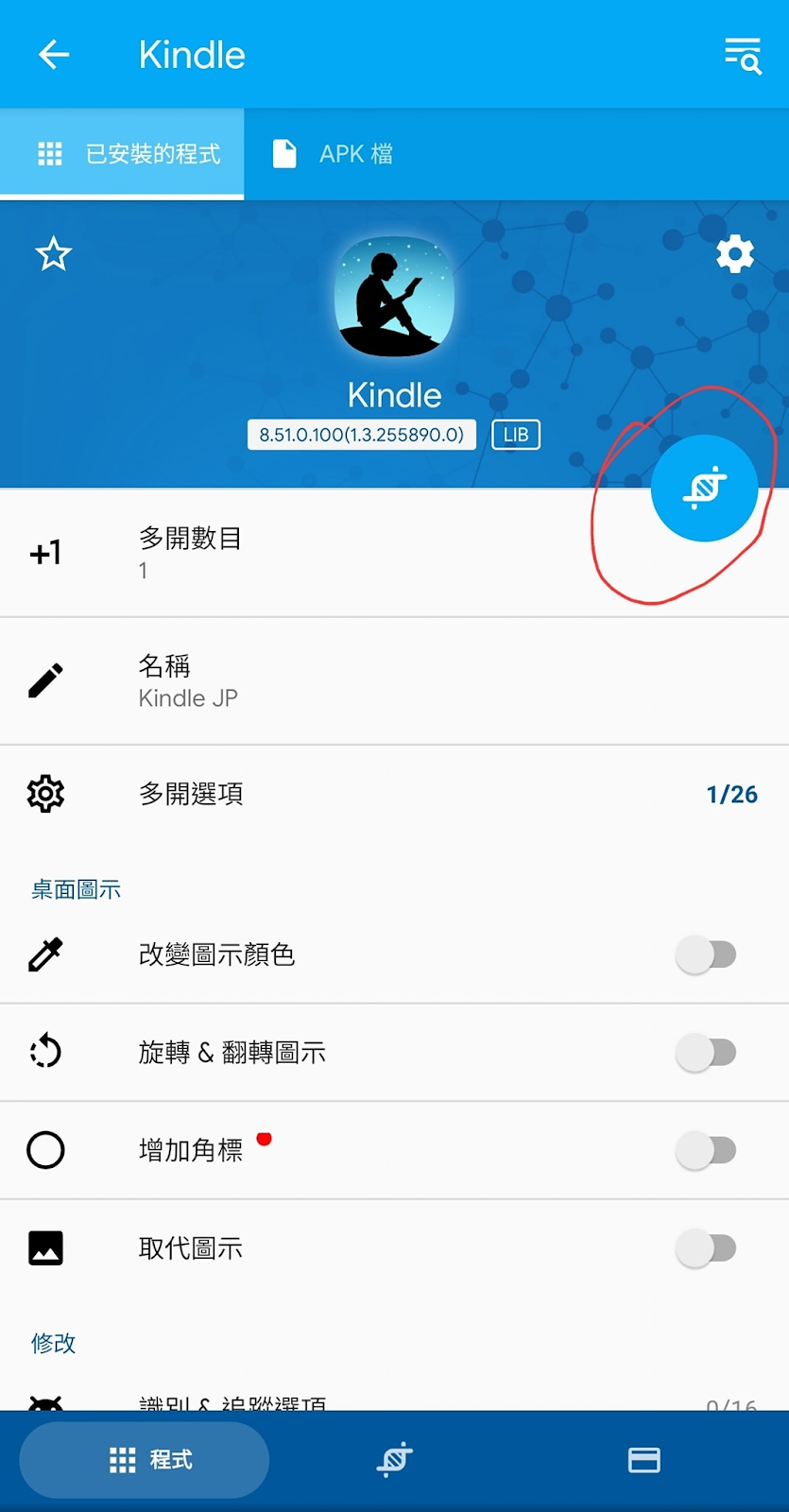
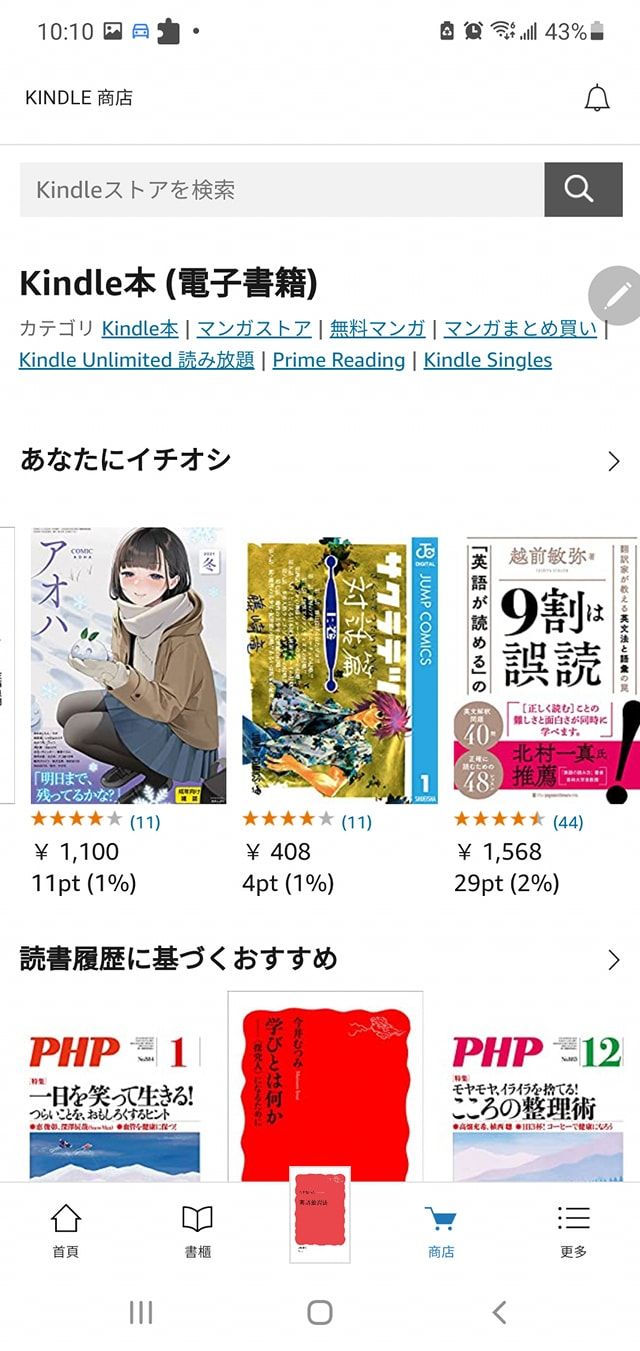
在網路上找一找發現有個叫 App Cloner 的程式,可以複製 app ,先改名稱為 Kindle JP, 然後在多開選項中多開模式改為 Manifest ,之後按複製按鈕,它就會將 Kindle 複製成一個叫 Kindle JP 的 app, 安裝完後,將系統語系改為日文(Kindle app 依照系統語系決定登入的網站), 輸入日本 Amazon 帳密,成功後手機上就有兩個 Kindle, 一個連美國 Amazon, 另一個連日本 Amazon, 兩邊的書都可以看了。

對了我的手機是 Android 的系統, iOS 能不能這樣玩我就不清楚了。


To purchase ebooks from Amazon is quite convenient. If you were a language learner, Amazon is heavenly! However, if you like me a multilinguo learner or user, then there comes a problem that Amazon offers different sites for different regions/countires/lanuages, and accounts in these sites are not always interechangeable. For example, I have an account in Amazon US and another account in Amazon Japan, these 2 accounts belong to each site, and the books purchased in Amazon US belongs only to Amazon US account and vice versa.

Then the problems come when I need to install kindle on my android phone, first thing is that you can only install one copy of kindle app on the device, 2nd thing is that the Amazon site kindle app chooses to login depends on your device's locale setting. Therefore, if your device's language setting is English then kindle app will log into Amazon.com, and if you set your device's language to Japanese, then the kindle app will log into Amazon.co.jp. (Why they just can't make into an option for users to choose?)

So, how would I be able to read books from 2 different Amazon accounts from different Amazon sites?

After some google search, I found an app called "App Cloner" (https://appcloner.app/), and after some trials and errors, I found that the only setting that I need to tweak to make cloned kindle app work on my phone (Samsung Note 10+) is by setting Cloning mode to "Manifest".

That is,
1. run "App Cloner", choose Kindle (Assuming that you already had a kindle app installed with your primary language/site logged in)
2. change Name to "Kindle JP" for example
3. click on "Cloning options" and change Cloning mode to "Manifest"
4. click the clone button to clone and install the cloned "Kindle JP" app

Voila! Now there is a new kindle app there! Don't get too excited to run the new cloned kindle app now. Remember that kindle app logs into the site depending on the device's language settting. Go to the device setting and change language to your intended language, Japanese for me.

Run the new cloned app and it should connect to the device language's default Amazon site. You can judge by checking the store's page and books there. Enter your account name and password to login.

Now you should have 2 kindle apps and be able to read all books from 2 amazon accounts!

You can change your device language back to what you used to.

# Tested and working on my Samsung Note 10+ and Boox Note 5+
# I don't know whether there is a similiar solution on iPhone